
Video walkthroughA short video for this guide is coming soon.
Who it's for: Everyone on an iPhone or iPad, on any plan. You need Safari for this step. Other browsers on iPhone can't add the app properly.
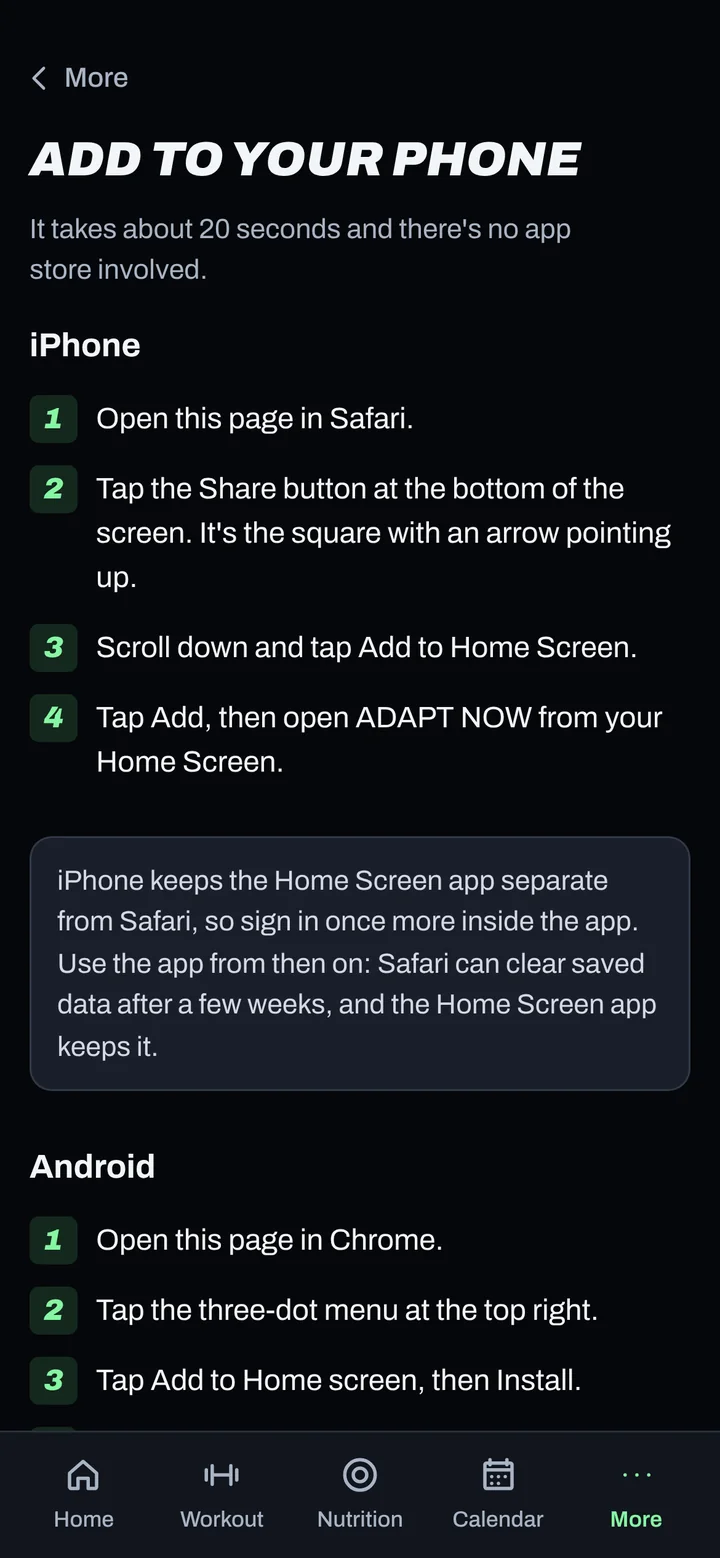
Steps
- Open Safari and go to app.adaptnow.app.
- Tap the Share button (the square with an arrow pointing up).
- Scroll down and tap Add to Home Screen.
- Tap Add. The ADAPT NOW icon appears on your Home Screen.
- Open ADAPT NOW from the new icon and sign in again with your email, password and authenticator code. The installed app keeps its own sign-in, separate from Safari.
Good to know
- Use the installed app every day, not the Safari tab. That's where your logs are saved and synced.
- Reminders on iPhone only work in the installed app, on iOS 16.4 or newer. See Turn on notifications.
- Inside the app you can find these steps any time under More > Add to your phone.
Not working?
| What you see | What to do |
|---|---|
| I don't see Add to Home Screen | Make sure you're in Safari, not Chrome or an in-app browser (like Instagram's). Scroll further down the Share sheet. You can also tap Edit Actions to add it. |
| The app opens but asks me to sign in | That's normal the first time. The installed app has its own sign-in. Sign in once and it remembers you. |
| My entries from Safari are missing | Entries saved only in Safari stay in Safari until they sync. Open the Safari tab once with signal so they sync, then use the installed app. |
Related
Still stuck? Message your coach or email support@adaptnow.app.
Still stuck? Message your coach in the app, or email support@adaptnow.app.