
Video walkthroughA short video for this guide is coming soon.
Who it's for: App members review their own check-ins. Group check-ins get a group review. Lifestyle and Elite check-ins go to your coach (Elite can also get a video reply).
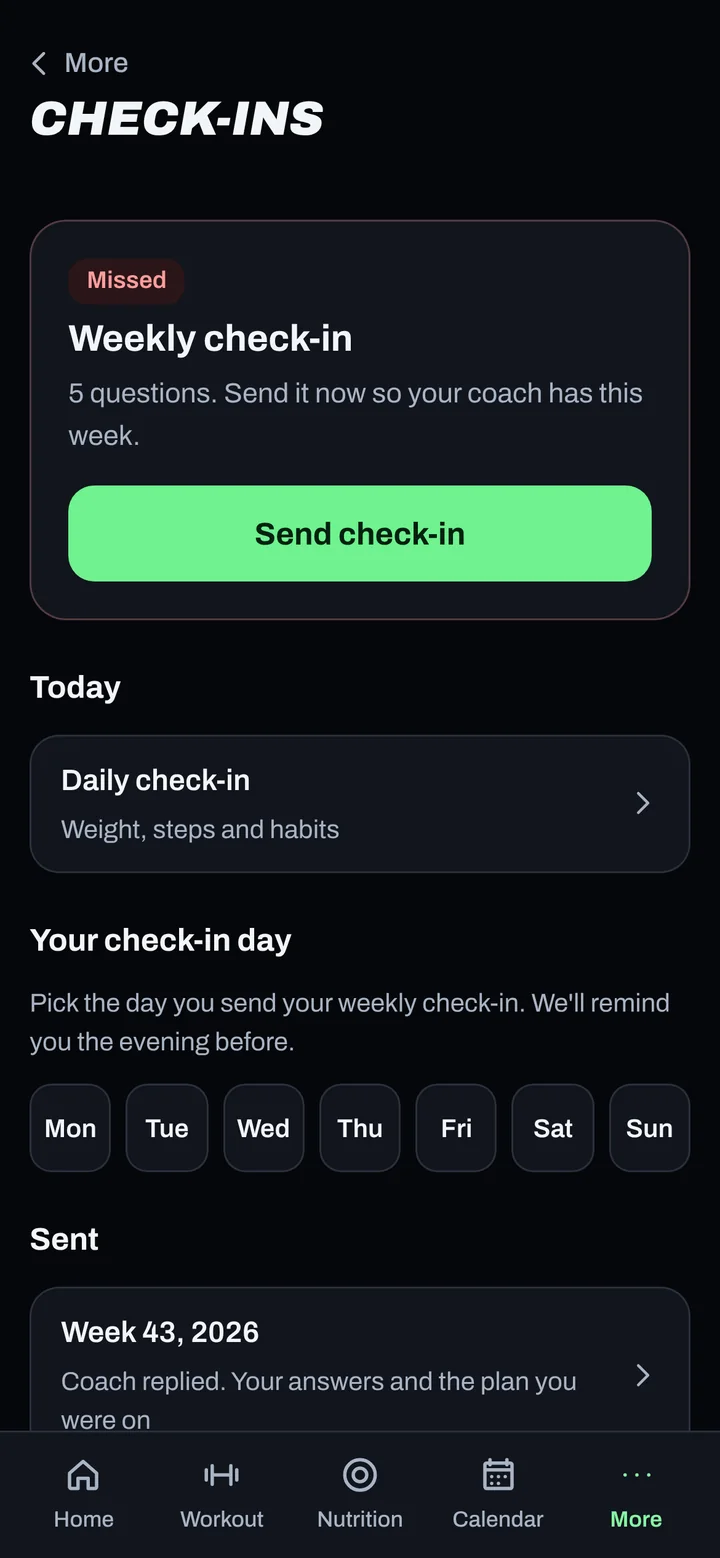
Steps
- When your check-in opens, tap it on Home, or go to More > Check-ins and tap Send check-in.
- Answer the questions. Answers save on your phone as you go.
- Add your photos in the named slots: front, back, side left, side right, plus any extra poses. You can add up to 8.
- Tap Send check-in.
- Find it later under Sent on Check-ins, with any reply.
Good to know
- Set your check-in day in Finish setting up on Home, or ask your coach.
- Physique clients may see required slots named after their division's poses.
- Can't do it this week? Tap Skip this check-in. Your coach sees that you skipped it.
- No signal? Send it anyway. It goes as soon as you're back online.
Not working?
| What you see | What to do |
|---|---|
| "Nothing due" | Your next check-in shows up when it opens. |
| I can't add photos | Progress photos need photo consent and a plan that includes them. See Progress photos. |
| "Check-in saved. Your coach gets it as soon as you have signal." | It's safe on your phone and will send when you're back online. |
Related
Still stuck? Message your coach or email support@adaptnow.app.
Still stuck? Message your coach in the app, or email support@adaptnow.app.